Understanding the User Security Toolbar
LightWork uses a User Security Toolbar to give you access to certain actions. This toolbar guide is specific to managing the User Security settings.
Understanding the Toolbar
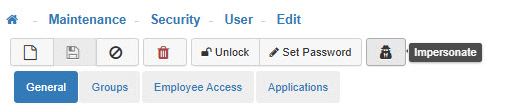
-
Add
This allows you to add a new User. -
Save
This allows you to save any changes made. -
Cancel
Discards any changes made. -
Delete
Deletes the User. -
Lock/Unlock
Locks or unlocks a User. If a User is locked, it means they cannot log into LightWork.
Note: A User can lock themselves out if they try to sign in unsuccessfully too many times (the number of tries is set up during implementation if a specific number of tries is desired). When a User is locked out, HR will then have to go into the system and unlock the account before the User can get back in. If the button in the toolbar displays ‘Unlock’ that indicates the account is currently ‘Locked'. -
Set Password
This allows you to Reset/Change the User’s password. -
Save
Once you are satisfied with your selections, click on 'Save'. -
Impersonate
Allows Administrative Users with appropriate Group Security access to 'Impersonate' a User for troubleshooting purposes. The User would need to have Full Access to the 'User Impersonation' securable on their assigned Group Security. The Impersonation functionality allows Administrators to go into the system to ‘Impersonate’ a User and see what they see without having to reset the User's password. Any changes made during an Impersonation session would be attributed to the User being impersonated during audit tracking so Administrative Users need to be mindful of any changes made in the system during an Impersonation session.
Note: During an impersonation session, the top toolbar of your LightWork session will display as a dark red banner and an icon will display in the upper right-hand corner of the screen which has a tooltip message of ‘Impersonation Active’ as a reminder. When finished, please be sure to Log Out to end the Impersonation by clicking the User dropdown in the upper-righthand corner and selecting the ‘Sign Out’ button.